Best Free Markdown Editor Online 2026 — I Tested 6 Tools
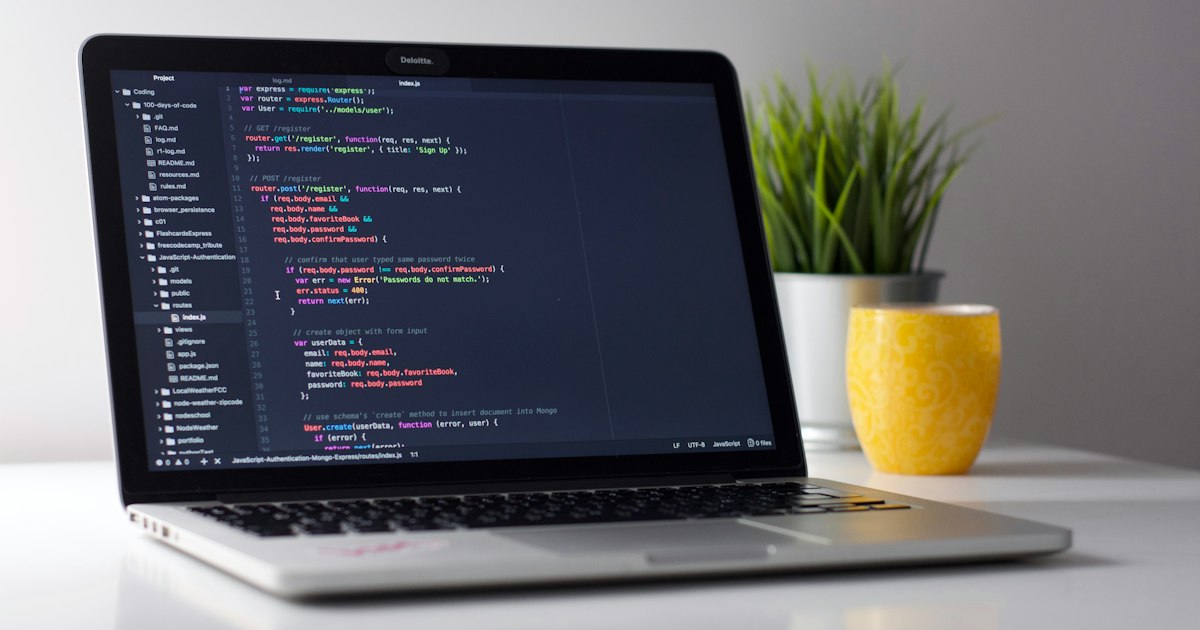
Photo by Lukas on Unsplash
Table of Contents
I've Been Using the Wrong Markdown Editor for Two Years
Markdown is everywhere in dev work — README files, documentation, pull request descriptions, blog content, API docs, internal wikis. And yet most developers I know either edit it blind in their text editor or use whatever tool they landed on first and stuck with out of inertia.
So I spent an afternoon running six free online Markdown editors through the same set of tests: a README with nested lists, a documentation page with tables and code blocks, a blog post draft with images and inline formatting, and a file with some GFM (GitHub Flavored Markdown) extensions like task checkboxes and strikethrough. Here's what I found.
What I Actually Look for in a Markdown Editor
Live side-by-side preview. I don't want to toggle between an edit and preview tab. Show me the rendered output as I type, in a pane next to the editor. This is table stakes for any tool I'll use daily.
Code block syntax highlighting. Dev docs are full of code. If my `javascript` fenced block renders as plain monospace text instead of highlighted code, the editor isn't good enough.
Table support. GFM-style tables — pipes and dashes — should render into actual HTML tables. A surprising number of basic Markdown tools don't handle tables at all.
Export or copy options. I want to copy the raw Markdown or export the rendered HTML. Bonus points for direct file download.
No login wall. I'm not creating an account to write a README. The tool should work the moment the page loads.
Speed. If there's a visible lag between typing and seeing the preview update, the tool is broken for me. Markdown preview should be instant — it's just text parsing, not a heavy computation.
With those criteria set, here's how each tool actually performed.
The 6 Editors I Put Through the Wringer

Photo by Luke Chesser on Unsplash
StackEdit.io — Far and away the most feature-rich option I tested. StackEdit handles GFM, LaTeX math rendering, Mermaid diagrams, and syncs to Google Drive, GitHub, and Dropbox. It's basically a full document editor built around Markdown. The trade-off is complexity — there's a real learning curve, and the default interface has so many panels that it feels cluttered. If you're writing technical documentation with diagrams, it's worth the setup cost. For a quick README? Overkill.
Editor.md — Built on CodeMirror, which means actual syntax highlighting in the edit pane. Tables, task lists, footnotes, abbreviations — it handles extended Markdown syntax that basic parsers miss. The preview is real-time and accurate. The issue: it feels like a library showcase rather than a polished product. No cloud sync, no export button that's obvious to find, and the overall UX needs work. Great parser, mediocre product.
HackMD.io — Collaborative real-time Markdown editing, like Google Docs but for Markdown. If you need multiple people editing the same document simultaneously, this is the one. It handles GFM, syntax highlighting (via Highlight.js), and has a clean two-pane layout. The catch: meaningful features sit behind a free account signup. The free tier is workable but the collaboration hooks are what HackMD is really built for.
Markdown Live Preview — Minimal and fast. Two panes, nothing else. Renders standard Markdown with GFM extensions, updates as you type, no account needed. It doesn't have export options or syntax highlighting in the editor, but if you just want to paste Markdown and see it rendered, this is the fastest path. Zero UI clutter, zero loading delay.
ToolsFuel Markdown Editor — Full disclosure: this is ours, and it's the one that ended up in my bookmarks. The live preview updates as you type with zero perceptible lag — everything runs client-side so there's no server round-trip causing delays. GFM tables, code blocks with syntax highlighting in the preview, task checkboxes, and inline formatting all render correctly. The copy-to-HTML button grabs the rendered output with one click, which is what I actually need 90% of the time when writing README files or documentation. No account, no watermark on exports, and the editor pane itself has line numbers and basic Markdown syntax hints. It loaded in under a second on every test.
Why the Little UX Details Decide the Real Winner
But here's what I've learned from years of testing developer tools: the feature list doesn't predict daily use. Friction predicts daily use.
I tested how long it took to go from a blank browser tab to having a working Markdown editor with live preview. StackEdit: about 12 seconds, including a cookie consent dialog and initial configuration panel. Dillinger: about 4 seconds, but no editor-pane syntax highlighting. ToolsFuel: under 2 seconds. The page loads, there's a split-pane editor ready, and you start typing.
For the table rendering test, I threw this at each editor:
``` | Tool | Tables | Code blocks | Export | |------|--------|------------|--------| | StackEdit | ✓ | ✓ | ✓ | | Dillinger | ✓ | Partial | ✓ | ```
Every tool rendered it — that part wasn't the differentiator. The differentiator was what happened when I pasted a table with inconsistent column widths and extra spaces. Most tools either borked the rendering or silently trimmed my whitespace. ToolsFuel's parser was lenient in the right places — table cells don't need to align perfectly in the raw Markdown for the output to look clean.
The code block test was more revealing. I pasted a block with triple backticks and a language identifier:
```` ```python def greet(name: str) -> str: return f"Hello, {name}" ``` ````
Dillinger rendered it as a code block but without syntax highlighting. Editor.md highlighted it. ToolsFuel highlighted it. HackMD highlighted it via Highlight.js. StackEdit highlighted it. Markdown Live Preview: plain monospace. Not a dealbreaker, but if you're writing dev docs, highlighted code blocks make a real difference in readability.
For converting raw Markdown content — like pulling text from a file and checking character counts or word counts — the word counter handles Markdown text without freaking out about the formatting syntax, which not all word counters do.
And if you're building something that generates Markdown programmatically and you need to quickly check the output, the JSON formatter pairs well with this — format your API response to find the Markdown string fields, then preview them in the Markdown editor.
GFM vs CommonMark vs Standard Markdown — Which One Matters to You
CommonMark is the most rigorous formal spec — a precise, unambiguous definition of Markdown that resolves all the edge cases. If you care about portability, write CommonMark-compatible Markdown.
GitHub Flavored Markdown (GFM) is CommonMark plus GitHub-specific extensions: tables, task list items (checkboxes), strikethrough (`~~text~~`), and autolinks. If you're writing README files or GitHub wiki pages, this is what you need.
Standard Markdown (or original Markdown) is the original 2004 spec — no tables, no task lists, no strikethrough. Many basic editors only support this level.
For practical dev work, GFM support is the baseline I care about. Tables and task checkboxes show up constantly in README files and documentation. Any editor that doesn't render them is limited for real-world use.
The MDN Markdown reference shows how Mozilla handles Markdown in their documentation, including some GFM specifics. Useful if you're contributing to open source documentation and want to follow established conventions.
One more tip: if you're writing Markdown for a platform that converts it to HTML (like a CMS, a static site generator, or a blog tool), paste the Markdown into an online editor to preview exactly how it'll render before committing. Much faster than pushing to staging and checking there.
Frequently Asked Questions
What's the difference between Markdown and GFM (GitHub Flavored Markdown)?
Standard Markdown (the 2004 original spec) handles basic formatting: headers, bold, italics, lists, links, and code blocks. GFM is a CommonMark superset that adds tables using pipe syntax, task list checkboxes, strikethrough with double tildes, and automatic URL hyperlinking. Most platforms that render Markdown today support at least GFM-level features. If you're writing README files on GitHub or GitLab, you're writing GFM.
Can I use a Markdown editor to write content for a website or CMS?
Yes, and it's a great workflow. Write your content in a live-preview Markdown editor, then either copy the raw Markdown if your CMS accepts it natively (Ghost, Notion, Hashnode, many others do), or use the export-to-HTML option if your CMS accepts HTML input. This way you get a real-time preview of your formatting before it ever touches your publishing platform.
Does Markdown support images and what's the syntax?
Yes. The standard syntax is ``, which is basically a link wrapped in an exclamation mark. You can also use a reference-style format for longer documents. Rendered output is a standard HTML img tag. One thing to watch: most Markdown specs don't support resizing images natively — for width control, you'd need to drop into raw HTML within your Markdown document, which most parsers allow.
Is there a way to convert Markdown to a PDF from an online editor?
A few online Markdown editors support direct PDF export — Dillinger and StackEdit both have this feature. For tools that only export HTML, the simplest workaround is: export to HTML, open the HTML file in a browser, and use the browser's built-in Print to PDF. For precision PDF output with custom styling, Pandoc (a command-line tool) is the professional choice — it converts Markdown to PDF via LaTeX with full typography control.
Do online Markdown editors save my content?
Most free online editors don't save your content automatically — if you close the tab, your work is gone. StackEdit is the main exception on the free tier: it syncs to your browser's local storage and optionally to Google Drive or Dropbox. For tools that don't auto-save, get in the habit of copying your Markdown to a local file before closing the tab. Treat them as preview tools, not storage.
What's the fastest way to preview Markdown without installing anything?
Open the ToolsFuel Markdown editor at toolsfuel.com/tools/markdown-editor — the page loads in under 2 seconds and you get a working live-preview editor with no account, no install, and no setup. Paste your Markdown in the left pane, see the rendered HTML in the right pane instantly. Copy the rendered HTML output with one click when you're done. That's it.
Try ToolsFuel
23+ free online tools for developers, designers, and everyone. No signup required.
Browse All Tools